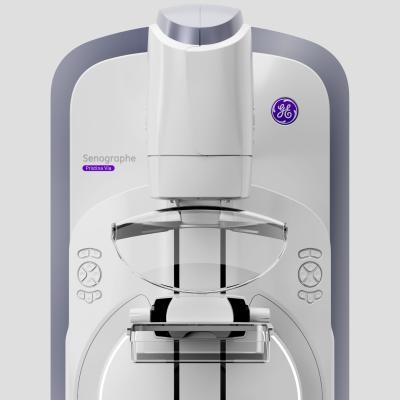
What is Orthanc?
Orthanc is a free and open-source software for medical imaging. It is designed to provide a simple and efficient way to store, manage, and share medical images. Orthanc is widely used in clinics and hospitals to manage digital radiography and imaging data. Its main features include encryption, large-file snapshots, and restore points, which ensure safer clinic files and faster recovery.
Main Features
Orthanc provides a range of features that make it an ideal solution for medical imaging management. Some of its key features include:
- Support for DICOM and other medical imaging formats
- Encryption and access control for secure data storage
- Large-file snapshots and restore points for efficient data recovery
- Web-based interface for easy access and management
Installation Guide
System Requirements
Before installing Orthanc, make sure your system meets the following requirements:
- Operating System: Windows, macOS, or Linux
- Processor: 64-bit processor
- Memory: 4 GB RAM or more
- Disk Space: 10 GB or more
Installation Steps
Follow these steps to install Orthanc:
- Download the Orthanc installer from the official website.
- Run the installer and follow the prompts to select the installation location and options.
- Wait for the installation to complete.
- Launch Orthanc and configure the settings as needed.
Technical Specifications
Database Management
Orthanc uses a database to store and manage medical imaging data. The database is designed to be efficient and scalable, with support for large volumes of data.
Data Storage
Orthanc supports a range of data storage options, including local storage, network-attached storage (NAS), and cloud storage.
| Storage Option | Description |
|---|---|
| Local Storage | Store data on the local machine. |
| NAS | Store data on a network-attached storage device. |
| Cloud Storage | Store data in a cloud storage service. |
Troubleshooting Sync and Import Issues with Recovery
Common Issues
Some common issues that may occur during sync and import include:
- Data corruption or loss
- Network connectivity issues
- Database errors
Troubleshooting Steps
Follow these steps to troubleshoot sync and import issues:
- Check the network connection and ensure it is stable.
- Verify that the database is properly configured and functioning.
- Try restarting the Orthanc service and retrying the sync or import.
- If issues persist, contact the Orthanc support team for assistance.
Pros and Cons
Pros
Some of the benefits of using Orthanc include:
- Free and open-source software
- Easy to use and manage
- Support for large volumes of data
- Secure data storage with encryption and access control
Cons
Some of the limitations of Orthanc include:
- Steep learning curve for advanced features
- Limited support for certain medical imaging formats
- May require additional configuration for large-scale deployments
FAQ
How to Export Data from Orthanc
To export data from Orthanc, follow these steps:
- Log in to the Orthanc web interface.
- Select the data to export.
- Choose the export format (e.g. DICOM, JPEG).
- Specify the export location and options.
- Click the